Now, for OnlineXpress Website Templates, Agencies can show their travel accreditations on the footer. Adding that information is optional and will be different for each travel agency.
Note: You must have admin permissions if you want to add the logo images.
Step 1 - Create New Page - Partial
From Admin top menu under "Content" link select "Design" (https://app.travelagencytribes.com/admin/page)

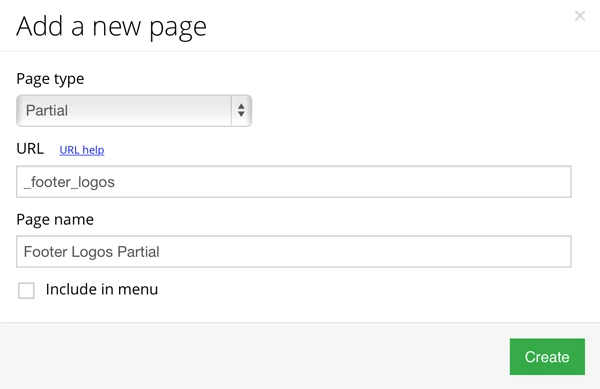
Once you are on design section click on "New page" green button. When popup comes up select page type "Partial" and must use as a permalink: " _footer_logos".
Step 2 - Select your accreditation logo images
Before start editing and adding the HTML code be sure you have your accreditation logos images. Here is a selection we already uploaded:
- Adventure Travel Trade Association Member
- Affluent Traveler Collection
- Association of Canadian Travel Agencies
- Consumer Protection BC
- Cruise Line International Association
- Disney Cruise Line
- Disney Specialist
- Distinctive Destination Weddings
- Destination Wedding & Honeymoon Specialists Association
- International Air Transport Association
- International Gay & Lesbian Travel Association
- National Association of Career Travel Agents
- Sandals Specialist
- Travel Industry Council of Ontario
- Travelsavers
- The International Ecotourism Society
- United States Tour Operators Association
- Don't see your accreditation logo? Help update the list sending your request here.
Step 3 - Start adding the HTML code
Let's go back to our "Design" section https://app.travelagencytribes.com/admin/page and search for "footer" and select your "_footer_logos" page. You will see a completely empty editor page (please, don't be scared). Inside the editor code, add the HTML syntax for the image:
<img src="image-logo-url" alt="Logo Name">
Example, if you want to add the "International Air Transport Association" logo just look in the list above and click on the link. The logo will show in a separate page. After that, copy and paste the URL of the logo image.
Keyboard shortcuts: Windows [Ctrl+C (Copy) and Ctrl+V (Paste)] Mac [Command+C (Copy) and Command+V (Paste)]

Will look like that:
<img src="<img src=" https:="" s3.amazonaws.com="" gttwl="" attachments="" help.gttwl2.com="" ltmq6z="" 1445457567_original.jpeg"="">" alt="International Air Transport Association">
Do you want to add more logos? Repeat the same HTML syntax for the other image. See the video for more details.